> ## Documentation Index
> Fetch the complete documentation index at: https://handcash-docs-guest-wallets-integration-guide.mintlify.site/llms.txt
> Use this file to discover all available pages before exploring further.
# Developer Dashboard
> Dashboard to manage organization, applications, billing and wallet
## Environment Setup Walkthrough
Follow this step-by-step guide to set up your environment and get started with the Handcash Developer Dashboard.
### 1. Sign Up and Create a team
Begin by signing up for a Handcash account. Once registered, create your team and invite team members to collaborate.
**Steps:**
* Navigate to the [Sign Up](https://dashboard.handcash.io) page.
* After logging in, click on "Create Team."
* Enter your team details and invite team members via email.
### 2. Create a New Application
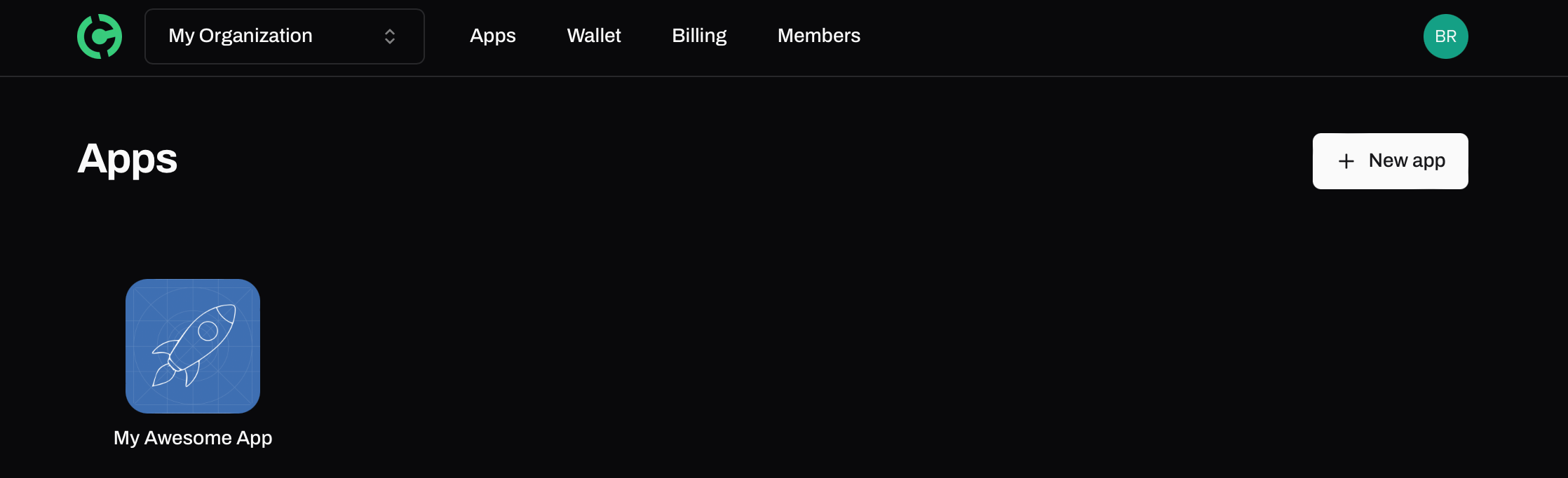
With your team set up, the next step is to create a new application within the dashboard.
### 3. Navigate to Your Application
Once your application is created, you can access its details and configure various settings.
 #### Credentials
Access your `AppId` and `AppSecret` required to utilize Handcash services.
#### Credentials
Access your `AppId` and `AppSecret` required to utilize Handcash services.
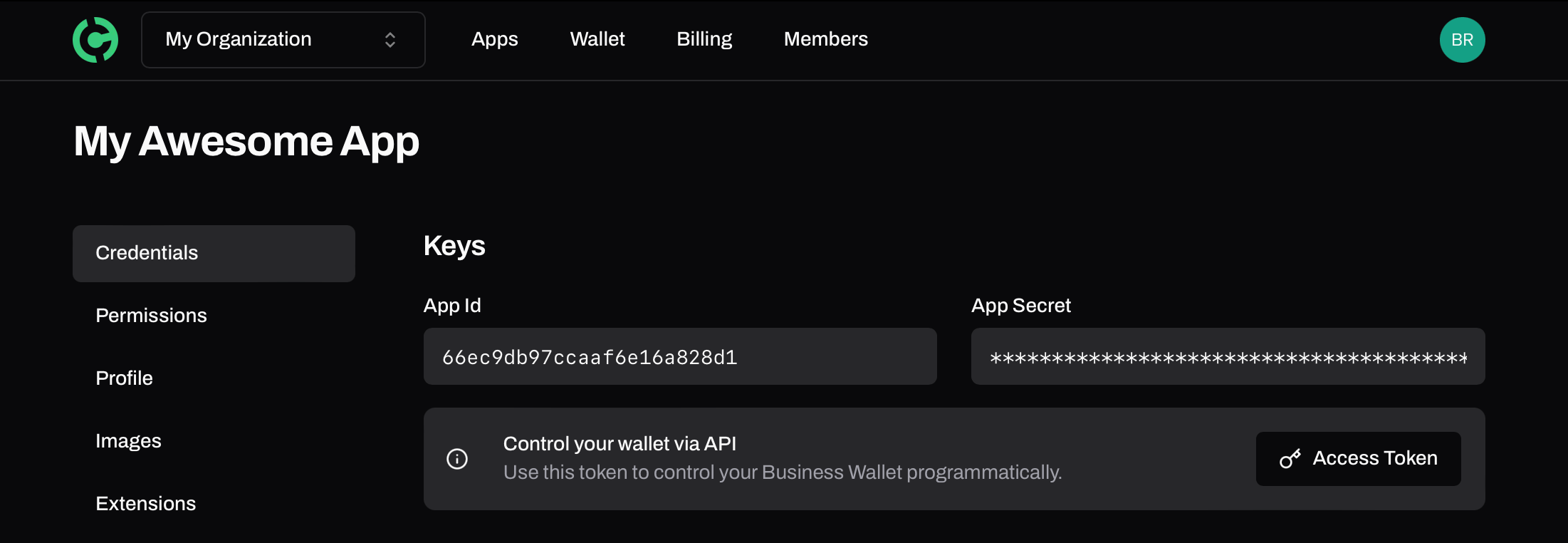 * **Important:** Keep your `AppSecret` secure and do not share it publicly.
#### Profile
Edit and update the details of your application to ensure it aligns with your branding and requirements.
***
## Need Help?
If you encounter any issues or have questions, don't hesitate to reach out to our [Support Team](mailto:support@handcash.com).
***
* **Important:** Keep your `AppSecret` secure and do not share it publicly.
#### Profile
Edit and update the details of your application to ensure it aligns with your branding and requirements.
***
## Need Help?
If you encounter any issues or have questions, don't hesitate to reach out to our [Support Team](mailto:support@handcash.com).
***